
To open an HTML file on an iPhone or iPad, save it to the Files app and tap it; a preview opens straight away. In our test on an iPhone 15 with iOS 27.0.1, that preview showed text and inline styles but ran no JavaScript and loaded no separate CSS or images. For those, use a viewer app or open the page from a link.
It's a small irony of the trade: the phone renders web pages all day, yet hand it one from its own Files app and you get a careful, script-free preview. Below is what that preview did with four test files, and the routes that ran more of them.
How to open an HTML file on iPhone: use the Files app
For a self-contained page (text and styles inside one file), the built-in preview does the job:
- Get the file into the Files app, on the phone or in iCloud Drive. If it arrived as a ZIP, tap the ZIP in Files and it unzips into a folder; both of our test archives unzipped that way.
- Tap the
.htmlfile to view it. The preview opens full screen.
Our plain test page rendered, inline CSS included. A link to an outside site (example.com) brought up "Leave Files and open this link?" with Cancel and Open; a link to another HTML file in the same folder did nothing.
Opened from a Mail attachment, our JavaScript page showed and its script didn't run; sent through Messages, the file arrived and its JavaScript didn't run either.
What the iPhone preview can and can't open: test results (November 11, 2026)
We ran the test on a real iPhone 15 with iOS 27.0.1 on November 11, 2026, with four files: a plain page with inline CSS, a page whose JavaScript turns a red box green, a small canvas game, and a two-page site folder (index.html, an external style.css, an image in img/, an external script.js and about.html). They reached the phone as two ZIP archives.
| Test file | Files preview | Documents app (Readdle) | Hostsmith link in Safari |
|---|---|---|---|
| Plain page, inline CSS | Rendered, inline CSS applied | Not tested | Not tested |
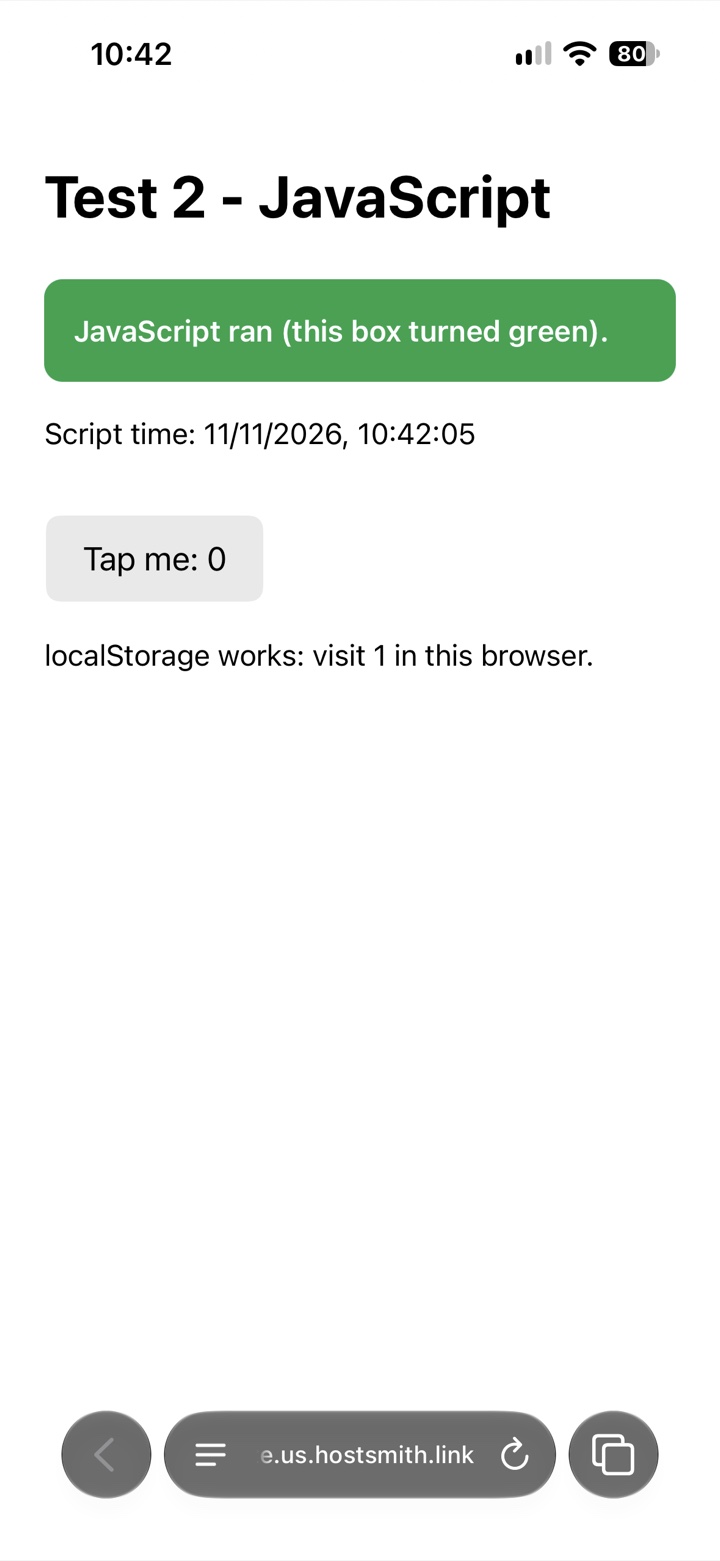
| JavaScript page | Rendered, script didn't run: box stayed red, counter stayed at 0 | Script ran | Script ran, localStorage worked (also in Chrome) |
| Canvas game | Game didn't start, empty canvas | Playable | Playable |
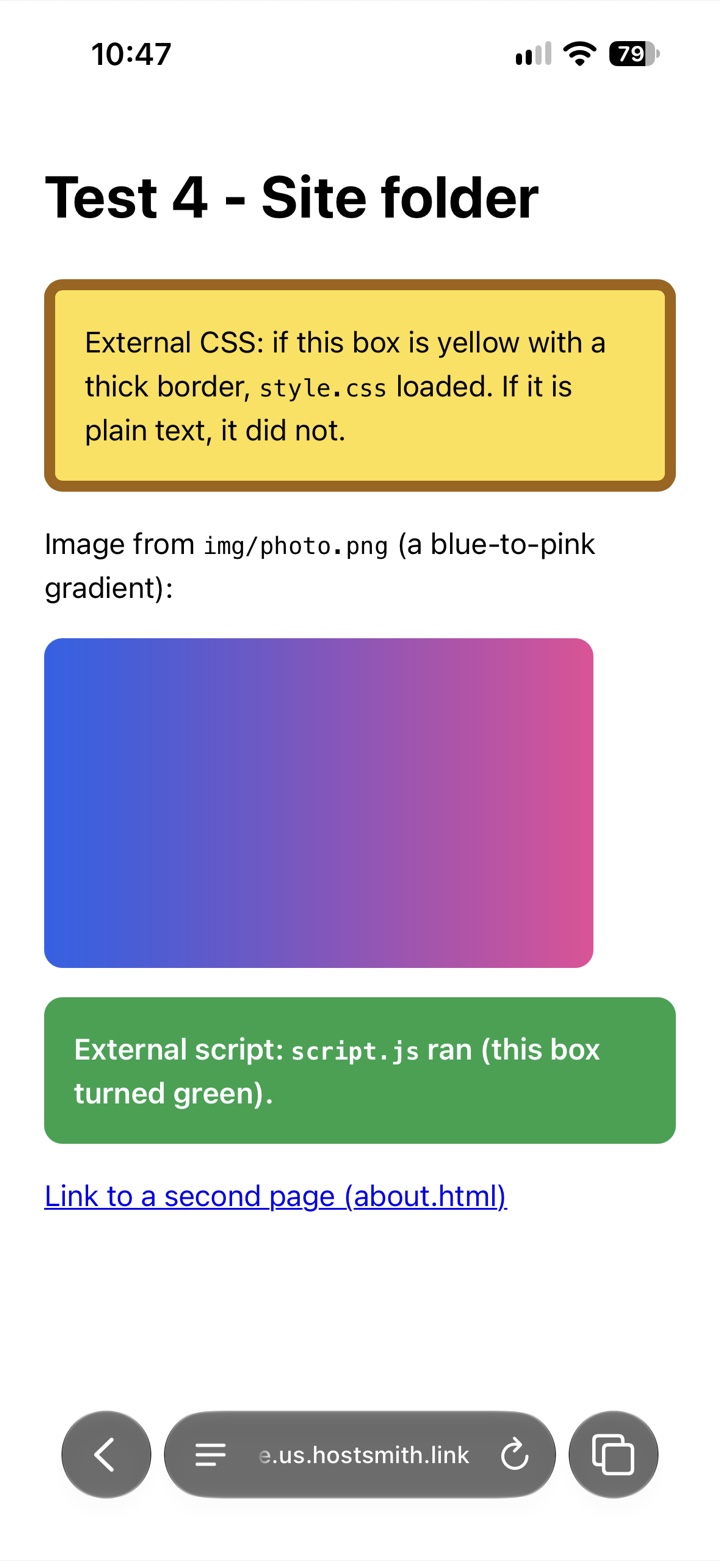
| Site folder (CSS, image, script, second page) | No external CSS, broken image, script didn't run | Not tested | CSS, image and script loaded; link to about.html worked |
Checked November 11, 2026, iPhone 15, iOS 27.0.1.
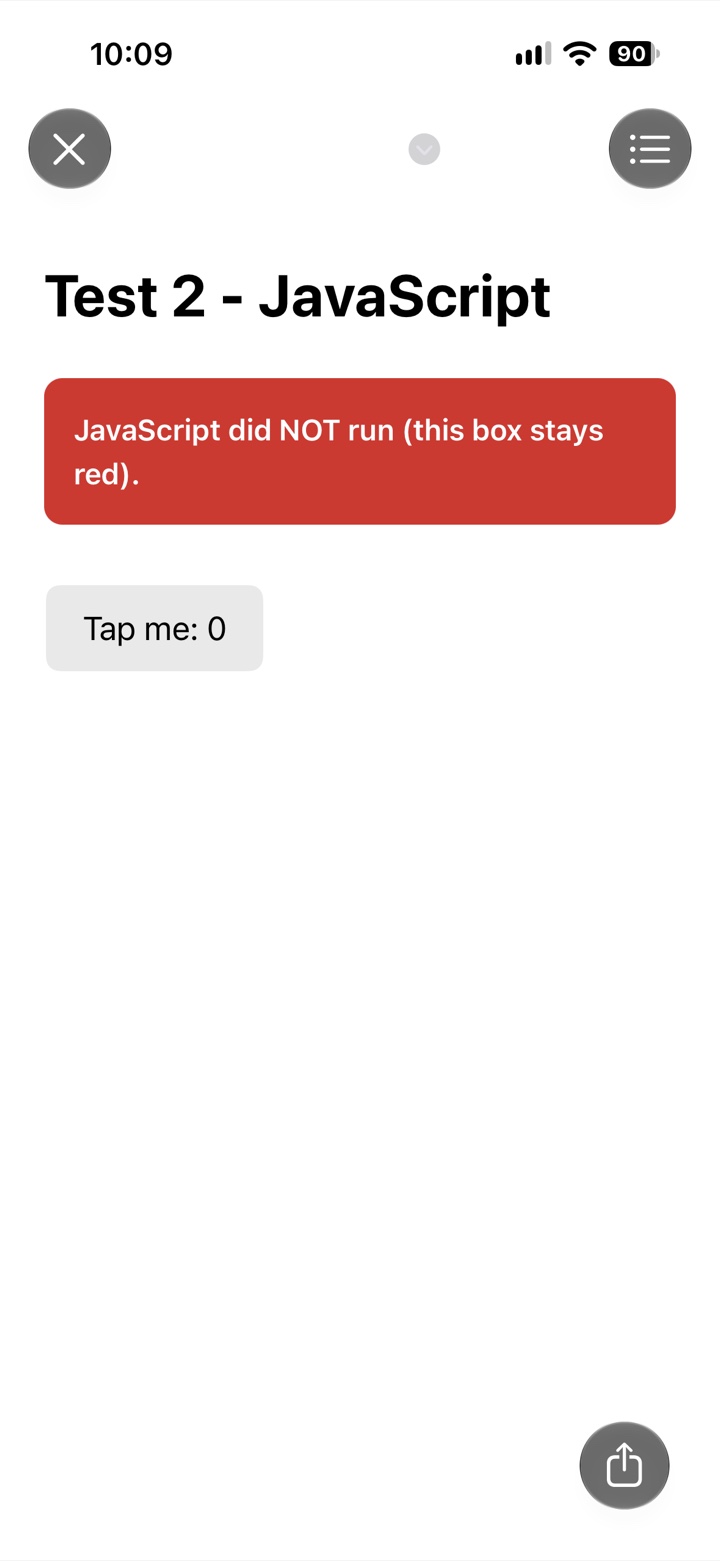
The site folder fared worst: plain Times text, a broken image placeholder with its alt text, and no script. A copy in iCloud Drive, opened through Files, looked the same.
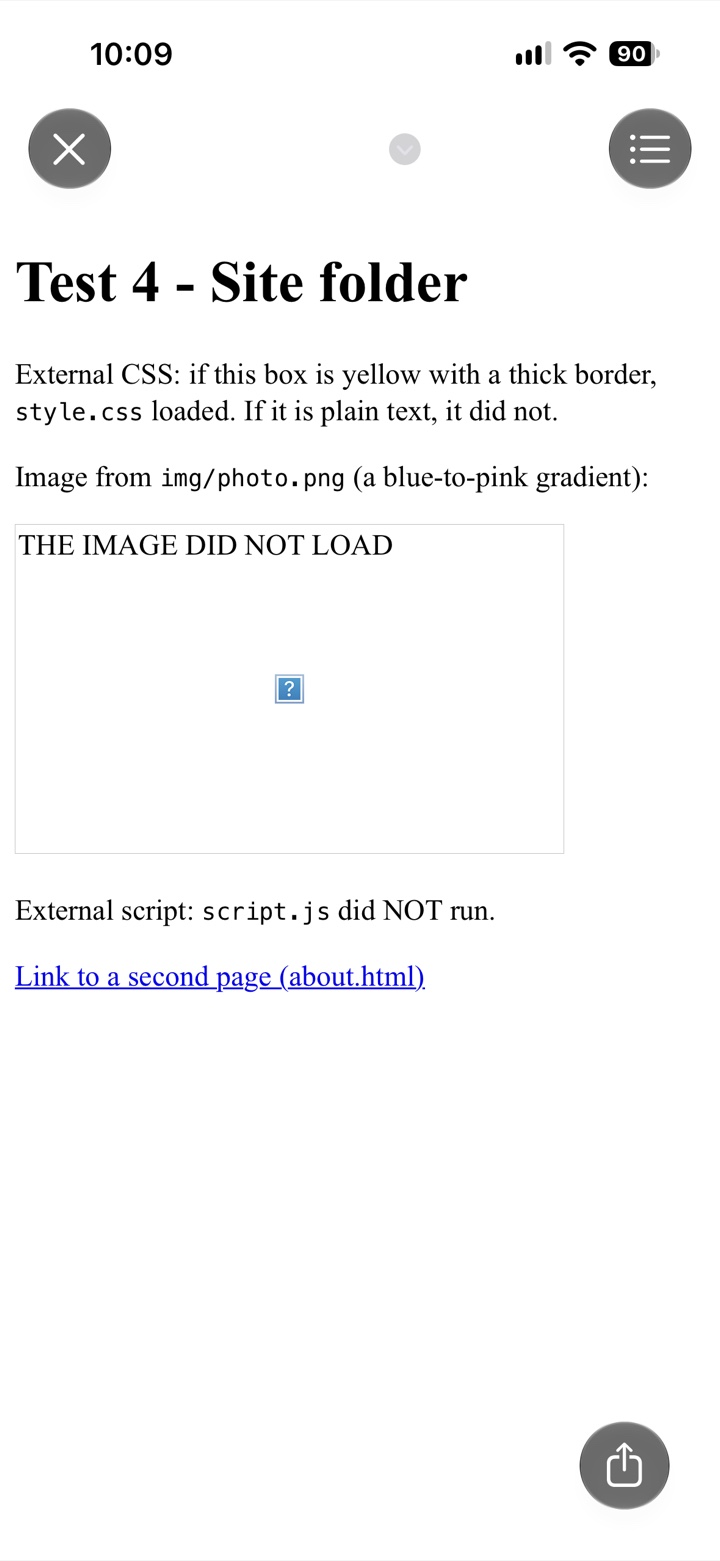
In short, the preview handles a page that stands on its own; anything needing a script or a second file needs another route. Apple's Quick Look documentation describes previews of common file types with basic interactions, and doesn't mention running scripts.
Can you open an HTML file in Safari on iPhone?
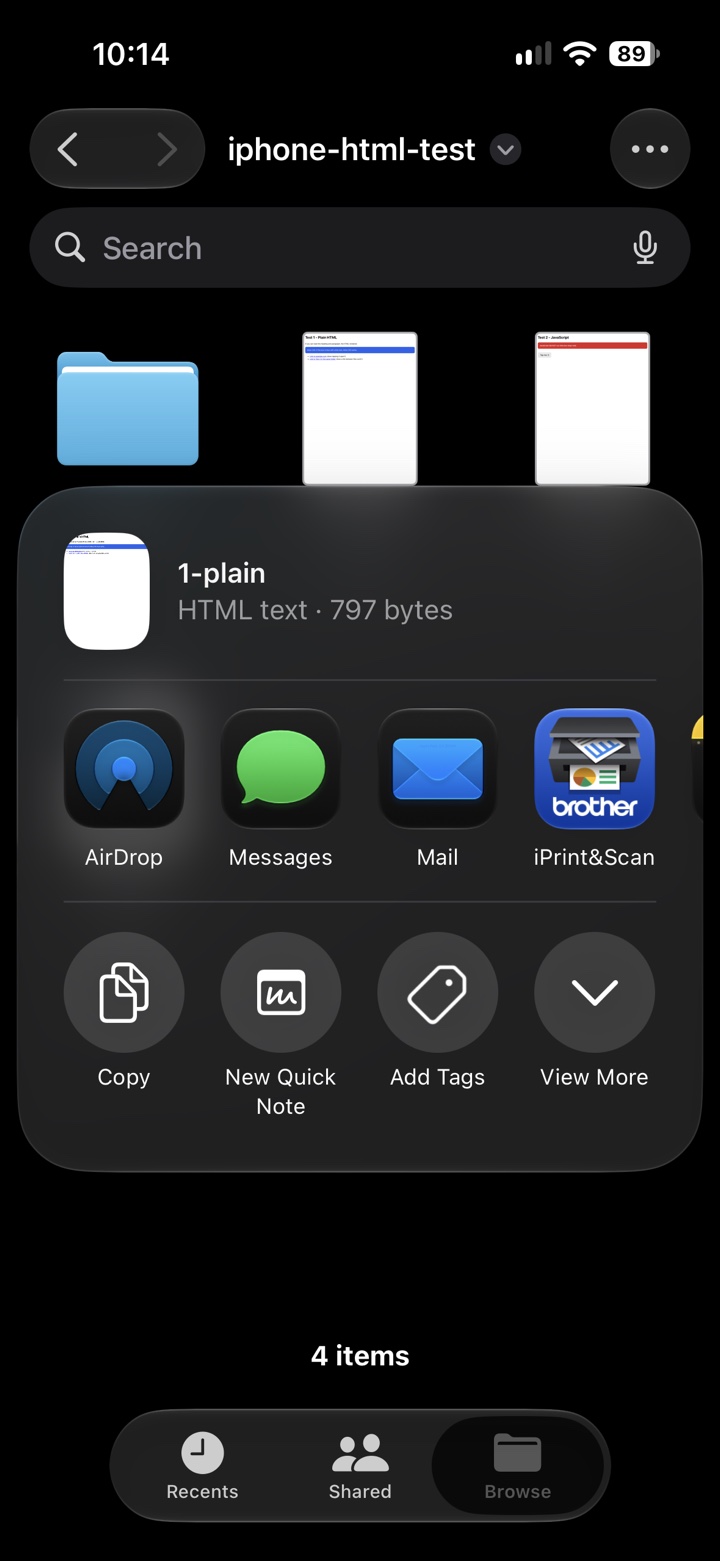
Not from the Files app, in our test. The share sheet for an .html file offered AirDrop, Messages, Mail, an installed printer app, Copy, New Quick Note and Add Tags, plus a few actions from other installed apps under View More. Safari wasn't on it.
We also found no way to get a file:/// path for a Files document into Safari's address bar. Going round through icloud.com in Safari didn't help: tapping the file showed "Cannot Open File" and offered a download, which opened in the same preview. We found no way to open a local HTML file in Chrome either. We didn't test Edge; Microsoft's own answer on Microsoft Q&A says Edge on an iPad won't load a local HTML file's CSS, JavaScript, sounds or images.
Opening a local HTML file in a desktop browser has worked since Mosaic. On iOS, Apple Community threads asking for the same go back to at least 2019, and they all agree on the part we hit: no route into Safari. So the workable order is the preview, then a viewer app, then a link.
Use an HTML viewer app
Documents by Readdle ran our JavaScript page and canvas game, which the Files preview couldn't; the other "HTML viewer" app we tried didn't even appear under Open With.
Documents: File Manager & Docs (Readdle) is free to download with in-app purchases (App Store, November 11, 2026) and needs iOS 16 or later. To open a file, touch and hold it in Files and choose Open With > Documents, or use Share > Documents. We didn't test the site folder in Documents. The App Store listing doesn't mention HTML, so this worked in our test without a vendor promise behind it.
HTML Viewer - Source Code Viewer (Hayato Shimizu, free with in-app purchases) didn't appear under Open With for our file, seemed to work only with URLs, and showed a lot of ads.
With no install, we loaded 2-script.html into codebeautify's HTML viewer in Safari, and its JavaScript ran. The page takes pasted code, an uploaded file or a URL, and says it doesn't send code to its server for preview; its Save online feature does store code, so keep private pages out of that one. We tried a single file there.
Open it from a link (and send it to someone else)
A link earns its place when the page needs its scripts, styles or images, or when someone else has to open it on their phone. Sending the .html file doesn't help there: opened from Mail or Messages, it ran no JavaScript.
Step 1 is a Files feature Apple documents; we ran steps 2 to 5 on the iPhone itself, from Safari:
- Zip a site folder first. Apple's ZIP guide gives the iPhone steps: in Files, tap More, then Select, choose the items, then tap More at the lower right and Compress. The ZIP saves to that same folder (Archive.zip if you picked several items). Hostsmith takes one file or one ZIP (a ZIP with one folder at the top is unwrapped), so a single page can go as it is.
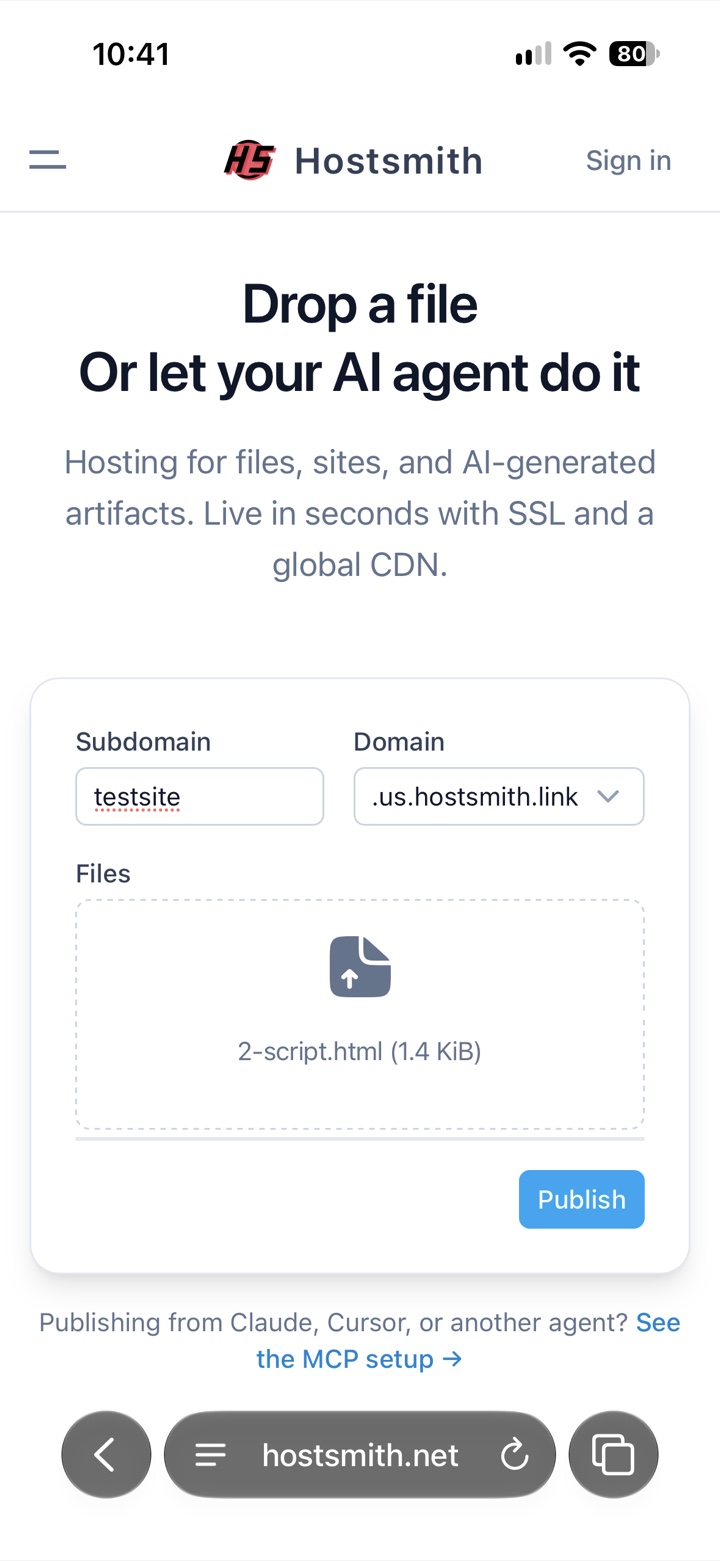
- Open hostsmith.net in Safari and tap the drop box. The iOS file picker opens; pick the file from Files.
- Choose a subdomain. The box shows your file, a subdomain field and a hostsmith.link domain (
.usor.eu, depending on where your sites are hosted). Ours was.us.hostsmith.link. - Sign in to publish. The box takes the file first and asks you to sign in to publish; a new visitor creates an account at that step. Signing in and publishing both worked on the phone.
- Open the link, which looks like
your-site.us.hostsmith.link(or.eu).
At the link, the script ran and localStorage worked, in Safari and in Chrome. The game played. The zipped site folder loaded its CSS, image and script, the link to about.html worked, and the address served index.html without it in the URL.
The limits, as of November 2026: the Free plan has 1 site and 5 MB of storage, which is also the largest file you can upload, and Free sites carry a Hostsmith watermark. Our test account was on a paid plan, so the screenshots show none. Starter is $5 a month billed yearly or $9 billed monthly (pricing), drops the branding, and adds Private Sites (a password or an email whitelist); see how to password protect a website.
To compare hosts, see how to host an HTML file online; for the ZIP-and-drop flow from a computer, drag-and-drop website hosting. For a downloaded Claude artifact, publishing it from Claude may be quicker.
How to open an HTML file on iPad
Save the file to Files and tap it, as on the phone. We tested on an iPhone only, so read the table as an iPhone result. Apple's iPad guide to Files describes the same basics (touch and hold for Share and Compress, and Uncompress for a ZIP), and Quick Look, the preview framework, is listed for iOS and iPadOS alike. Apple doesn't document how either preview treats scripts.
A 2019 Apple Community thread shows the folder case on an iPad. The poster builds e-learning content in Adobe Captivate and checks the HTML5 exports for clients who use them on iPads; in Files one gave an empty white preview, and it wouldn't open in Safari. Documents had opened her HTML folders until an app update, after which they stopped working. Documents runs on iPadOS 16 or later, though we tested it on the phone only. For a folder, zipping it and opening it from a link is the route we saw work.
Why an HTML file won't open, shows code or looks broken on iPhone
The first four turned up in our test; the last one we didn't see, but it's what a code viewer does:
- Unstyled text, broken images. The preview didn't load the separate CSS and image files. Open the folder from a link.
- Buttons do nothing, a game won't start. The preview runs no JavaScript. Use Documents or a link.
- Links to other pages do nothing. The preview ignored a same-folder link. From a hosted link, the second page opened.
- "Cannot Open File" in Safari. icloud.com won't open it in the browser. Downloading it or opening it from Files only gets you back to the preview.
- Raw tags instead of a page. The app you chose is showing the source. Check that the name ends in
.html, then open it from Files.
Frequently Asked Questions
Is there an HTML viewer app for iPhone? Yes. In our test, Documents by Readdle ran a page's JavaScript and a canvas game that the Files preview couldn't.
Can I open an HTML file on iPhone without an app? Yes. Tap it in the Files app and it opens in a preview. For a page with no scripts and no separate CSS or image files, that's usually enough.
How do I open a file link on my iPhone? Tap it. A hosted page opens in Safari like any other site, and in our test the same link worked in Chrome too.
How do I open HTML games on iPhone? The Files preview didn't start our canvas game. Documents ran it, and so did a hosted link. If you made the game with an AI tool, our guide to a vibe coding website covers getting it online.
Can I open an HTML file in Chrome on iPhone? We found no way to hand a local HTML file to Chrome. A hosted link opened in Chrome without trouble.
Read it in the preview, run it from a link
The Files preview is fine for a page that stands on its own, and it's worth trying first. For anything with a script, a game or a folder of files, the link is the dull, dependable answer: an ordinary web page, on your phone and on the phone of whoever you send it to.
If the page needs to run on someone else's phone too, open hostsmith.net in Safari, drop the file or the zipped folder in the box, and you'll have a link to send.