
The Universe website builder at onuniverse.com is shutting down: your site "will stay online and working until December 31, 2026", and Universe will cancel every subscription automatically before then, on a date it hasn't named. Its export tools save your images, videos, mailing lists and order histories and transfer your domain, but nothing on that list covers your text or your pages. So save what the tools give you, copy your words out yourself, move your domain before your subscription ends, and have Claude rebuild the page; every step below is written for an iPhone, photos included.
Universe made a website about as easy as posting a photo, which was the whole appeal, right up until the layout turned out to live only on someone else's servers. The steps below follow Universe's shutdown notice and its help center, checked November 27, 2026.
Is Universe shutting down? The dates, as Universe gives them
Yes. The notice says Universe plans to "wind down the service over the remainder of 2026":
| What happens | When |
|---|---|
| Export tools at web.univer.se/export | Open (checked November 27, 2026) |
| No new sites, subscriptions or domain registrations | "In the coming weeks" (no date given) |
| All subscriptions cancelled automatically | Before December 31, 2026 (no exact date) |
| Your website stays "online and working" | Until December 31, 2026 |
Source: universeapp.com/shutdown, checked November 27, 2026, linked from a "Universe is shutting down" banner on onuniverse.com. The Universe app's App Store listing ("Universe Website Builder", version 2026.9, October 6, 2026) doesn't mention it.
As with Mozilla Solo and Weebly's regional shutdown, the order that works is save the content, secure the domain, then rebuild.
Can you export a Universe site? What the export saves and what it leaves out
Not as a whole site. Universe's notice says its export tools "help you download images and videos, export mailing lists and order histories, and transfer your domain to another provider." The notice's list has no page text, HTML or site file.
| Item | In Universe's export? | What to do |
|---|---|---|
| Images and videos | Yes | Download them (Step 1) |
| Mailing list | Yes | Export it (Step 1) |
| Order histories | Yes | Export them (Step 1) |
| Page text | No | Copy it yourself (Step 2) |
| Page names and order | No | Write them down (Step 2) |
| Custom domain | Transfer out | Move it early (Step 3) |
| Layout and design | No | Rebuild it (Step 4) |
Step 1: Download your photos, videos, lists and orders
Open web.univer.se/export in Safari, sign in to your Universe account, and download each item on the page (a computer's browser works too).
On the phone, downloads usually land in Files under Browse, iCloud Drive, Downloads (Apple's downloads guide). If anything arrives as a ZIP, tap it in Files and it unzips into a folder, as both archives did in our test of how to open an HTML file on iPhone.
- Do this before you delete anything. Deleting the account removes your sites, images and videos for good (Universe's help article).
- Selling through Universe? Export the orders now. The rebuilt page is a plain page: a sign-up form can live on Tally or Google Forms, and selling needs a payment service with its own checkout link.
Step 2: Copy your text yourself, page by page
Your words leave with you only if you copy them. Open your live site in Safari (or the Universe app) and go page by page. Per Apple's text guide, triple-tap with one finger to select a paragraph, or double-tap and hold the first word of a block and drag the grab points. Tap the selection, choose Copy, and paste it into one note in Notes:
- A heading per page, using the page's name, in the order of your menu.
- The page's text under it, exactly as it reads.
- Contact details, hours and social links, checked twice.
Then screenshot each page as a layout reference: press the side button and volume up together (on iPhone SE, the Home button and the side button). Screenshots are "automatically saved to your photo library" (Apple's screenshot guide).
Keep that note afterwards; it's the one copy of your words that doesn't depend on Universe.
Step 3: Start your domain transfer before your subscription ends
If your Universe site uses your own domain, move it before you cancel, and before Universe cancels for you. Its cancel article says that if your subscription covers a domain, "the domain will be disconnected and not renewed with the registry", and "When the domain expires we may not be able to recover it." The automatic cancellation has no exact date, so the domain's real deadline comes before the site's.
Universe's guide, How to transfer your custom domain out of Universe (dated September 28, 2026), sets three conditions:
- Start at web.univer.se/domains, signed in to Universe.
- Owners only: "Collaborators on a site are unable to transfer out a domain."
- A 60-day lock: "newly registered domains cannot be transferred to a new registrar for 60 days". If yours is that new, ask Universe's support team while your subscription is still active.
The registrar you move to has its own transfer steps, and Universe doesn't say what happens to a domain left connected after December 31. On Hostsmith, your own domain needs Pro ($15 a month billed yearly, $21 monthly, up to 5 custom domains, per pricing in November 2026); the hostsmith.link address works on every plan. If your site ranked in Google, see the migration SEO checklist.
Step 4: Rebuild the page with Claude on your iPhone
On the phone, use Claude. Create and edit files with Claude (checked November 28, 2026) says "File creation is supported on Claude for iOS and Android", on every plan from Free up, and says Claude can make plain text files such as .html. If it's off, tap your initials or name in the left sidebar to open Settings, then Capabilities, and turn on Code execution and file creation (in the updated Settings layout it's called Create and edit files).
ChatGPT suits a computer better: OpenAI's code blocks page offers Preview and Copy for an HTML block, and the page doesn't say the iPhone app hands back an .html file.
Gather the photos in one folder. In Files, open iCloud Drive, tap More, then New Folder, and name it my-site (Apple's Files guide). In Downloads, or the folder the ZIP made, tap More, then Select, choose the photos the page needs, and tap Move. Then touch and hold each photo, tap Rename, and give it a short lowercase name with no spaces, keeping its ending: shop.jpg, team.jpg. Keep it to a few photos and no videos: on the Free plan the whole ZIP has to fit in 5 MB (Step 5).
In Claude, attach your screenshots to the chat (Claude takes JPEG and PNG images, per its upload help) and paste this, with your note under it (if the app won't attach them, use a computer):
Rebuild my website as one HTML file named index.html, designed for a phone screen first. Keep all CSS inside the file, with no external scripts or fonts. Show my photos by these exact file names, kept in the same folder as the page: shop.jpg, team.jpg. Use my text below exactly as written and don't add anything. Give each of my old pages its own section, in the same order, with a menu at the top that jumps to each section. Match the layout and colors in the screenshots I've attached. When it's ready, give me the file to download.
Put your own file names in the third sentence, or, for a text-only page, replace it with "Use no images." Refine by chatting ("bigger phone number"); the save-the-date guide uses the same pattern.
Get the file into the folder. Tap Download. Claude's help page says the file opens "in either the system preview or a separate app"; from there, keep a copy named index.html in my-site, next to the photos. If it won't go into Files from that screen, use the computer route below.
Check it on the live link. In our iPhone test, the Files preview showed text and inline styles but loaded no separate image files, so your photos will look broken there until the page is online.
Have a computer? It's easier for a big site: download the images there and save the result as index.html beside them (from ChatGPT, paste its code into a file of that name). How to publish a website covers the folder checks; a multi-page rebuild with Claude Code suits separate pages.
Step 5: Put the new site online from your phone
Any plain-HTML host will run the result; how to host an HTML file online compares the options. On Hostsmith (disclosure: it's our product):
- With photos, zip the folder. In Files, touch and hold
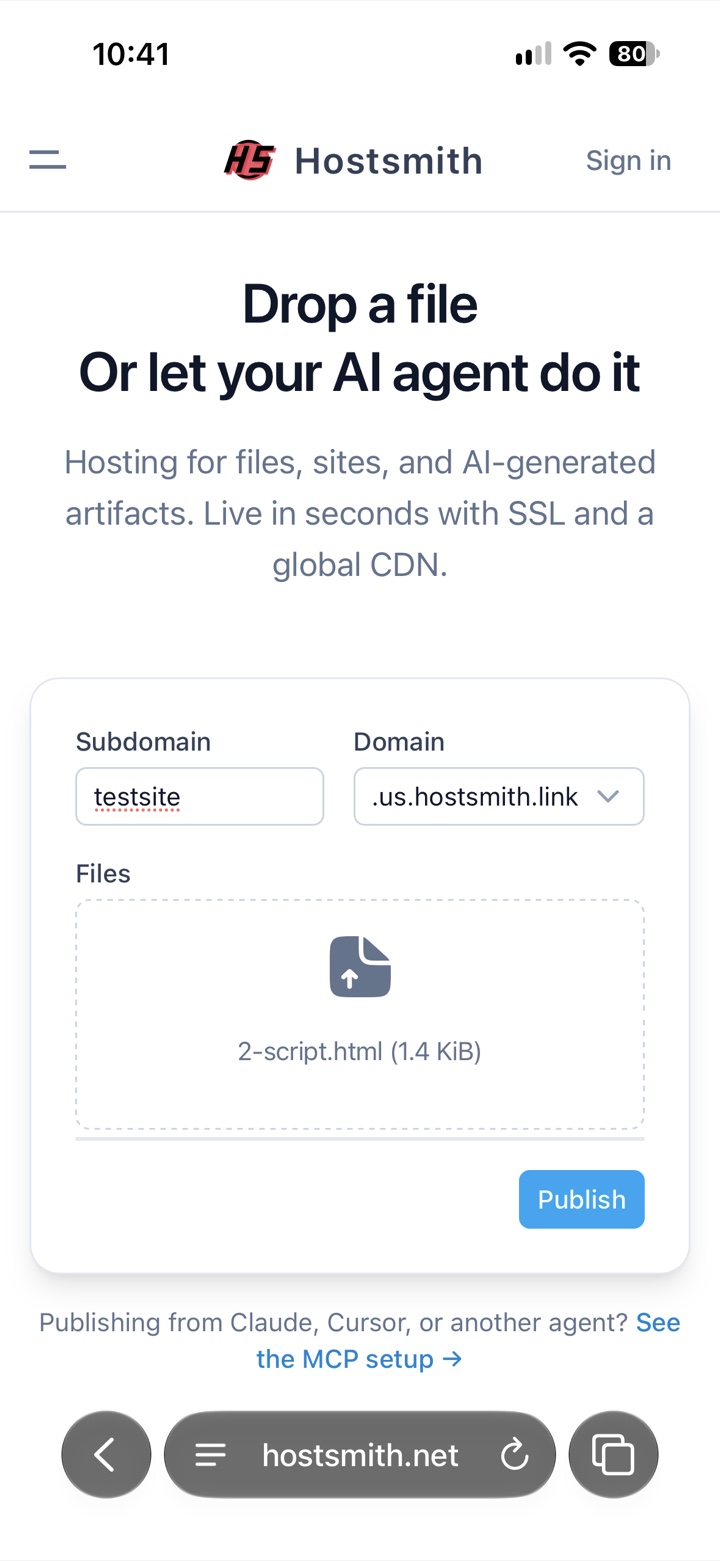
my-siteand tap Compress (Apple's Files guide); the ZIP saves next to it (Apple's ZIP guide). A text-only page can go up asindex.htmlalone. - Open hostsmith.net in Safari, tap the upload box and pick the ZIP (or the file) from Files. A ZIP with one folder at the top is unwrapped, so
index.htmlbecomes your home page. - Type a site name. It becomes your address, such as
your-name.us.hostsmith.link(or.eu.for the EU). - Sign in to publish, then open the link and check the photos.
Plans, as of November 2026 (pricing): the Free plan gives you 1 site and 5 MB of storage, which also caps each file, and shows the Hostsmith watermark ("Hosted on Hostsmith"). Signing up and the Free plan need no card. A text-only page is far under 5 MB; a photo ZIP over it needs fewer photos, or Starter: 50 MB for $5 a month billed yearly ($9 billed monthly), with no Hostsmith watermark.
The part that matters after a shutdown notice: Hostsmith sites stay up until you delete them, on every plan. Upload a new version to the same site and the same link shows it within a couple of minutes. More on small business hosting.
Then update every place your old address lives: bio links, Google Business Profile, QR codes, business cards and email signatures.
How to cancel your Universe subscription (and the refund question)
You may not need to: Universe says it "will automatically cancel all existing subscriptions before December 31, 2026." Finish Step 3 first if you have a custom domain. To cancel sooner:
- Paid through Apple: in Settings, tap your name, then Subscriptions, the Universe subscription, and Cancel Subscription (Apple's cancel guide).
- Paid on the web: the notice points to web.univer.se/subscriptions; the cancel article also offers its support team.
One trap: "Deleting your account with Universe will not cancel your subscription" (help article). The safe order is export, transfer the domain, cancel, and delete the account last, if at all.
The notice says nothing about refunds; the help center splits them by where you paid:
- Apple subscriptions: "for Apple subscriptions we are not able to offer refunds", though Apple may refund at its discretion. Ask at reportaproblem.apple.com (Apple's refund guide).
- Domains: "We do not offer refunds for domains."
- Site plans bought on the web: prorated refunds early in a billing period, though the refund article and the cancel article give different windows, so ask support.
Your Universe checklist before December 31
- Download your images and videos at web.univer.se/export.
- Export your mailing list and orders, and keep that customer data private.
- Copy each page's text into one note, in menu order, and screenshot each page.
- Start your domain transfer at web.univer.se/domains, if you have one.
- Put the photos in one Files folder with short names.
- Have Claude make index.html, and keep it in that folder.
- Compress the folder, upload it, and check the new link on your phone.
- Update your bio links, QR codes and signatures.
- Cancel, or let Universe cancel for you; delete the account last.
Frequently asked questions
Q: When does the Universe website builder shut down?
A: Universe is winding the service down over the rest of 2026, and its notice says websites stay online and working until December 31, 2026. Subscriptions are cancelled automatically before then.
Q: Can I export my whole Universe site?
A: No. The export tools cover images, videos, mailing lists, order histories and a domain transfer. Copy your page text yourself and rebuild the layout.
Q: Will my Universe site work after December 31?
A: Universe only promises it until December 31, 2026, so put the new version online and share its address before then.
Q: Can I keep my domain?
A: Usually, if you transfer it out before your subscription ends, because a cancelled subscription disconnects the domain. Only the domain's owner can transfer it, and a domain registered in the last 60 days can't move yet.
Q: Do I have to cancel my Universe subscription, and can I get a refund?
A: Universe cancels all subscriptions automatically before December 31, 2026. It doesn't refund Apple subscriptions or domains, so ask Apple about an App Store purchase and Universe's support team about a plan bought on the web.
Q: Can I do all of this on my iPhone?
A: Usually. Copy your text into Notes, put your photos in one Files folder, have Claude make index.html for that folder, compress the folder in Files and upload the ZIP from Safari. If Claude's file won't save into Files, finish on a computer, which is also easier for a big site.
Keep the copy that's yours
Funny how it comes full circle: phone builders were meant to spare everyone the HTML files and folders, and a folder with an HTML file in it is now the part of a Universe site you get to keep. The site has until December 31, 2026 and the subscriptions an earlier, unnamed date, so copy the words and move the domain first. After that, a plain page on any host doesn't hang on any one app's roadmap, ours included.
Got the zipped folder (or index.html)? Drop it at hostsmith.net from Safari and you'll have a new link for your bio before December 31.